A few weeks ago I made a name picture for a friend using a gold look. On my laptop it looked rich and warm. On her phone, the gold turned into a dull orange, and a tiny gray dot sat right on top of the first letter. The dot was not in the picture. It was on her screen.
That small moment is why this post exists. If you spend time choosing fonts, symbols and colors for your name, the display you judge them on matters as much as the style itself. A plain white screen is the fastest way to find out whether your screen is telling you the truth.
What Is a White Screen, Really?
It is exactly what it sounds like: every pixel on your display lit in pure white (#FFFFFF), with no icons, text or browser bars in the way. It looks boring, and that is the whole point. When nothing competes for your attention, flaws jump out: a dark dot, a yellowish corner, a patch that is slightly dimmer than the rest, or a smudge you never noticed before.
People look for this for all kinds of reasons. Some want a full white screen to check a new monitor. Some want a clean white screen image to use as a wallpaper or a photo background. Others just need a quick screen test before the return window on a new phone closes.
Why Font and Name Style Lovers Should Care
You might think display testing is only for gamers or tech reviewers. It is actually just as useful for anyone who designs with text. Here is why:
- Colors in name pictures depend on your screen. Neon, gold and fire looks are all about color. If your display has a warm or pink tint, you will “fix” colors that were never wrong, and everyone else will see the result looking off.
- Thin fonts hide problems. Script, Tiny and Small Caps styles have delicate strokes. A dead pixel can look like an extra dot over a letter or a break in a curve, and you may blame the font for it.
- Contrast is hard to judge on a dirty display. Fingerprints and dust soften dark text on light backgrounds, so you lose the crisp look you were aiming for.
- Your audience uses hundreds of different screens. You design on one device, but your styled name shows up on phones, laptops and tablets everywhere. Starting from a clean, accurate display gives you the best average result.
A white screen test takes about a minute, and it can save you an hour of second-guessing a design.
How to Do a White Screen Test, Step by Step
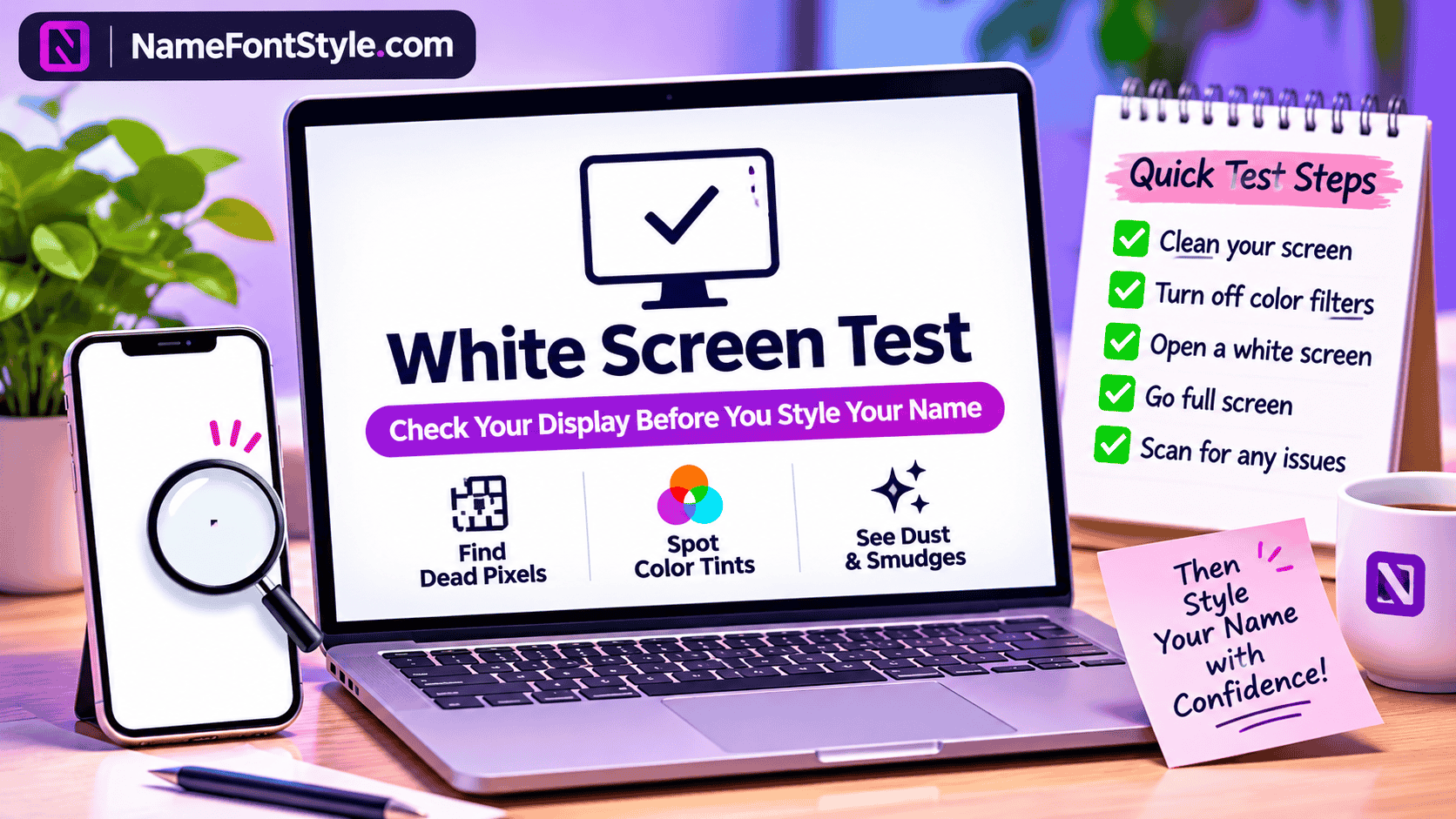
- Clean the display. Wipe it gently with a dry microfiber cloth so dust is not mistaken for a pixel problem.
- Turn off color filters. Switch off Night Light, Night Shift, True Tone, reading mode and any blue light filter. Set brightness fairly high.
- Open a white screen online. A free browser tool such as White Screen Test fills your display with pure white in one click, with nothing to install.
- Go full screen. Browser bars and taskbars hide the edges, which is exactly where light leaks and dead pixels like to sit.
- Scan slowly. Look from your normal viewing distance first, then move closer. Work from one corner to the other instead of glancing at the middle.
- Switch colors. Try black, red, green and blue too. Black reveals bright stuck pixels and backlight bleed; the primary colors show faulty subpixels.
- Take a photo of anything odd. Note the color and the position. If the device is new, that photo is your evidence for a warranty claim.
What You Might See and What It Means
| What you notice | Likely cause | What to do |
|---|---|---|
| A tiny black dot that never changes | Dead pixel | Check the maker’s pixel policy and warranty |
| A soft, blurry spot that moves when you wipe | Dust or a smudge | Clean the display and test again |
| The whole display looks yellow, blue or pink | Night mode, color profile or picture mode | Turn off filters and reset color settings |
| Darker edges or cloudy patches | Uneven backlight | Some unevenness is normal; compare on a gray screen |
| A blotch that spreads when pressed | Pressure damage | Stop pressing and get it checked |
If a dot stays black on every color, it is almost certainly a dead pixel. If it stays bright red, green or blue while everything around it changes, it is a stuck pixel, which sometimes recovers on its own.
A Quick Font Check on a Clean Display
Once your display passes, you can trust what you see. This is a good moment to put your favorite name styles through a simple check:
- Open the Name Font Style generator and type your name.
- Look closely at thin styles like Script, Tiny and Small Caps. Do the strokes look clean, or broken in places?
- Open the same style on a second device. If a letter looks broken on both, the issue is the style or the app. If it only looks wrong on one, the display is the more likely culprit.
- If you see empty boxes instead of letters, that is not a display fault. It means the phone is missing that character. The guide on why stylish names show boxes explains how to fix it.
This little routine separates three problems that people often mix up: a faulty display, a font that is not supported, and a design choice that simply does not read well at small sizes.
Other Smart Uses of a Full White Screen
A bright, even display is surprisingly handy once you start using it:
- Tracing letters. Put thin paper over a tablet showing a full white screen and it works like a lightbox. It is a lovely way to trace hand lettering or practice a calligraphy version of your name.
- Soft light for video calls. A second monitor or tablet set to white makes a gentle fill light in a dark room. If plain white feels too cold, a warm off-white such as #FFF4E5 is easier on the eyes.
- Clean backgrounds for mockups. Downloading a white screen image in 1080p or 4K gives you a neat backdrop for product shots, name picture previews and presentation slides.
- Cleaning. Streaks and fingerprints are almost invisible on a dark display but obvious on white, so you can clean everything in one pass.
Phone, Laptop or TV: Small Differences
Phones: Turn off auto brightness during the test, since it can make parts of the display look uneven while it adjusts. On OLED phones, keep tests short.
Laptops and monitors: Let the display warm up for 10 to 15 minutes before judging brightness and color. Check the corners carefully, because that is where backlight problems usually start.
Smart TVs: Open the test in the TV’s browser and view it from where you normally sit. Then walk closer for a second look.
Mistakes That Give You the Wrong Answer
- Testing with a blue light filter or warm mode still switched on.
- Skipping full-screen mode, so the edges stay hidden.
- Judging color in direct sunlight or under strong colored lamps.
- Using only one color and calling the screen test done.
- Mistaking a speck of dust for a dead pixel without cleaning first.
- Leaving a bright static image on an OLED display for hours.
Final Thoughts
Good typography starts with being able to see it properly. Before you spend an evening comparing gothic, bubble and script styles, or picking between neon and gold for your name picture, give your display sixty seconds on a white screen. If it is clean and even, design with confidence. If it is not, you will know that the problem was never your taste.
Frequently Asked Questions
What is a white screen test?
It is a quick check where you fill your whole display with pure white. Because every pixel should look identical, dead pixels, dust, tints and uneven brightness become easy to spot.
How do I make my display a full white screen?
Open a browser-based tester, choose white, and press the full-screen button. On a computer, press Esc to exit. On a phone, tap the button again or use the back gesture.
Can I use a white screen online for free?
Yes. Tools like White Screens Tester run in your browser on phones, laptops, tablets and smart TVs, with no app and no sign-up.
Can I download a white screen image?
Yes. Many testers let you save a plain white image in sizes like 720p, 1080p or 4K. It is useful for offline testing, wallpapers and clean design backgrounds.
Will a screen test fix dead pixels?
No. It only helps you find them. Dead pixels are a hardware fault. Stuck pixels sometimes recover on their own, but a test alone does not repair anything.
Why do my name styles look different on another phone?
Each device has its own color settings, brightness and font support. A warm display shifts colors, and an older phone may show boxes for rare characters. Testing your own display first removes one of those variables.
Is a bright white display bad for OLED screens?
Short tests are completely fine. Just avoid leaving any bright, static image on an OLED display for many hours, since it can add to uneven pixel wear over time.